The free way, in five taps
No account, no app, no upload anywhere. This is a real iOS feature, not a workaround.
- 1Open a photo
In the Photos app, open any photo with a clear subject — or from inside a Messages conversation, tap the + next to the text field, choose Stickers, then the + inside the sticker drawer to pick one.
- 2Long-press the subject
Press and hold on the person, pet or object you want as a sticker. iOS traces a glowing outline around it — the same on-device technology that powers Photos' subject-lift feature.
- 3Tap Add Sticker
A small menu appears over the outline. Tapping Add Sticker cuts the subject out and saves it to your sticker drawer — no crop, no background removal, nothing to export.
- 4Add an effect (optional)
From the drawer, a sticker can be tapped again for outline, comic, puffy or shiny effects. Skip this and it's still a usable sticker as-is.
- 5Send it
Open the sticker drawer in any conversation and tap or drag the sticker onto a message — it sends inline, or peels onto the corner of a bubble the way a physical sticker would.
What this actually needs
Fewer requirements than most how-tos on this site — it's an OS feature, not a third-party pipeline.
- iOS 17 or later (subject lift and Add Sticker both shipped there)
- A photo with a clear, well-lit subject — a person, a pet, an object with a defined edge
- A Live Photo instead of a still, if you want an animated sticker
- A busy background with low contrast against the subject — detection often just fails to find an edge
- A subject cropped off at the frame's edge — there's nothing there to trace
- Expecting it to work the same way for a friend on Android — it's an iMessage-only feature
A photo cutout, or a designed character?
Same long-press, same Add Sticker button, same free result either way. The only thing that changes is what you hand it.
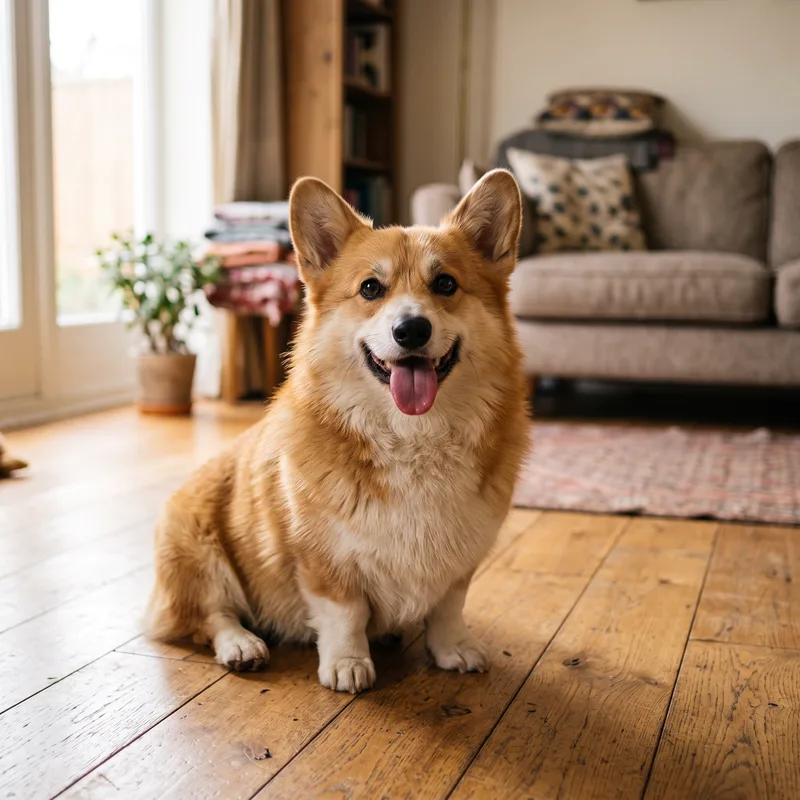
The native flow lifts this exact dog straight out of the background — a real photo cutout, free, no app.
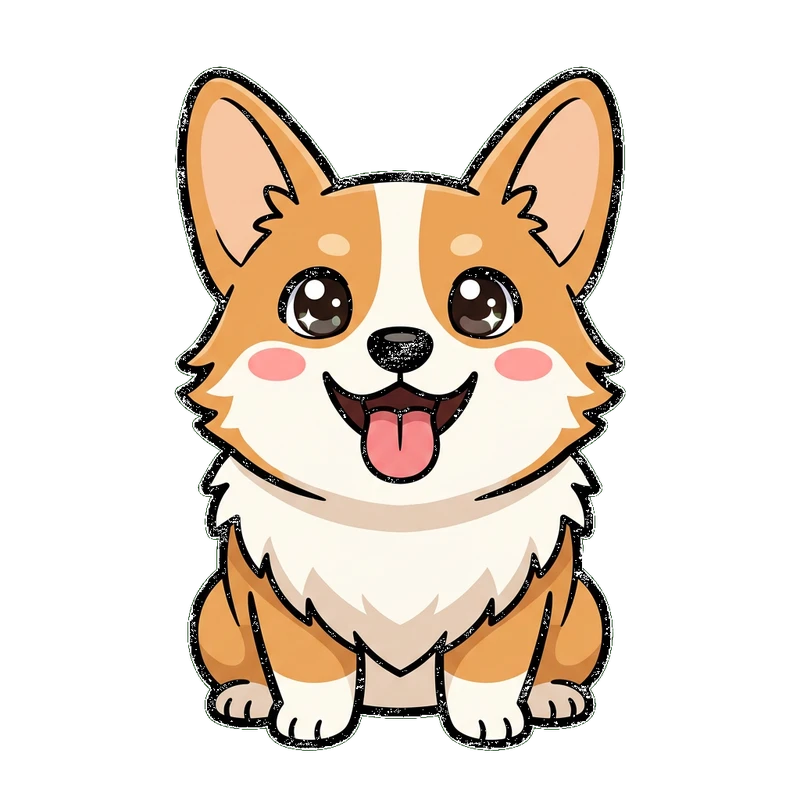
Same long-press, same "Add Sticker" — except what goes in is a designed character, not a cropped photo.
Long-pressing a photo you already have is the fastest possible route to a sticker, and it's genuinely enough most of the time — a good photo of a pet or a friend makes a perfectly good sticker as-is.
The honest limit is that it can only ever cut out what was already in the photo. It won't turn a blurry, backlit or awkwardly-cropped shot into something a sticker drawer's worth keeping, and it can't give you a consistent style across several stickers the way a drawn character can.
What it looks like once it's sent
The sticker drawer, and a sticker actually stuck to a message — the two things a screenshot of the feature never quite shows.





A sticker sent this way doesn't sit inline like an emoji — it peels onto the corner of a message bubble, the way a physical sticker would land on a postcard. That's a real iOS detail, not styling added here.
The strip along the bottom is the sticker drawer itself — every sticker made so far, in one place, ready to drag onto any conversation. A matching set of expressions fills that drawer the way one photo alone never can.
Design the character first
Everything above still applies exactly as written. This changes only what goes in at step one.
This corgi started as the photo up top. Same dog, redrawn — then it went through the exact same free flow to become a sticker.
Questions people actually ask
Design the character.
iOS still does the rest.
On Air Kit draws the character — your face as a cartoon, a mascot of your dog, whatever look you pick — and hands you back a clean image with the background already off. From there it's the same long-press, same Add Sticker, same free flow this page just walked through. We tested this exact path ourselves before writing a word of it.