Free badge resizer
Drop in one badge image. Crop or fit, then download all three required sizes — 72, 36 and 18px — transparent, checked against the 25KB cap, one at a time or all three as a zip.
- Crop and reposition, or keep the whole image with transparent padding
- A stepped, high-quality downscale, so 18px doesn't turn to mush
- Every size checked against Twitch's 25KB cap, not just the pixel dimensions
- A real chat mock, so you see the exact badge before you upload it
The three sizes, and the file rules
Three sizes, one format, one tight file cap. This is the whole technical requirement — everything after it is design.
| Size | Density | What it's for |
|---|---|---|
| 72 × 72 | 4x | Dashboard badge picker, subscribe-page perks preview |
| 36 × 36 | 2x | Higher-density rendering of the same chat badge |
| 18 × 18 | 1x | The default — next to the name, on every single message |
| Rule | Value | If you get it wrong |
|---|---|---|
| Format | PNG, static only | No animated badges — that's emote-only on Twitch |
| Max file size | 25KB per image, all three sizes | Upload is rejected |
| Background | Transparent | A coloured box sits next to every name that has it |
| Shape | Square | A rectangle isn't accepted |
| Upload | All three sizes together, per milestone | Twitch won't derive the smaller two for you |
A busy design doesn't just turn to mush at 18px — fussy line work and lots of colours also compress worse, which is how a badge quietly blows the 25KB cap too.
Flat colour and a couple of big shapes fix both problems with the same decision.
One spot, three densities — not three places
An emote earns three sizes because it shows up in three different UI surfaces. A badge earns three sizes because screens have different pixel densities — it's the same few pixels beside a name, every time.
Beside the name
Chat and the viewer list, every message, for as long as someone's subscribed. The 18×18 file is what renders there on a standard screen; 36×36 is the same spot on a retina display.
Two extra places
The badge grid in your Creator Dashboard, and the perks preview on your channel's subscribe page — where a potential subscriber sees what they'd unlock, badge flair included on Tier 2 and 3, before they commit.
Design for 18 pixels first
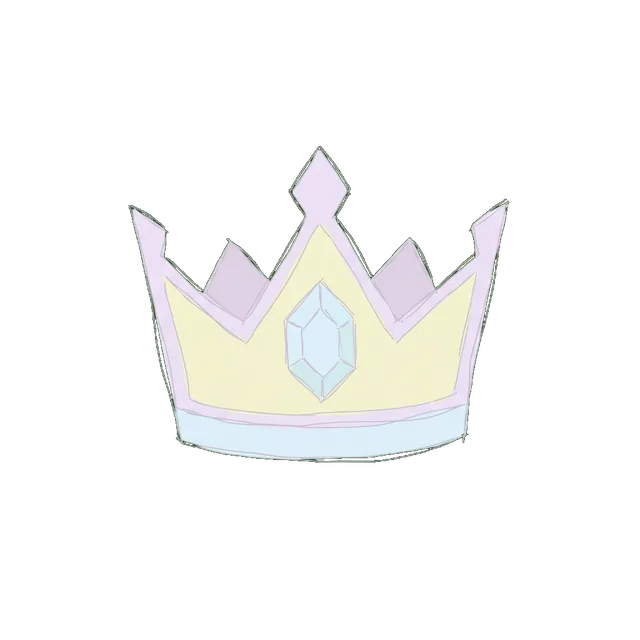
The same rule as an emote, applied to a much smaller canvas: a thick outline, one clear shape, and nothing fine enough to disappear.
 kiraStreamsLETS GOmodBottosame
A crown and one gem, drawn bold. Still a crown at 18px.
 smolDogLETS GOmodBottosame
Nothing anchors the shape, so it fades into the chat background.
 gamer_47LETS GOmodBottosame
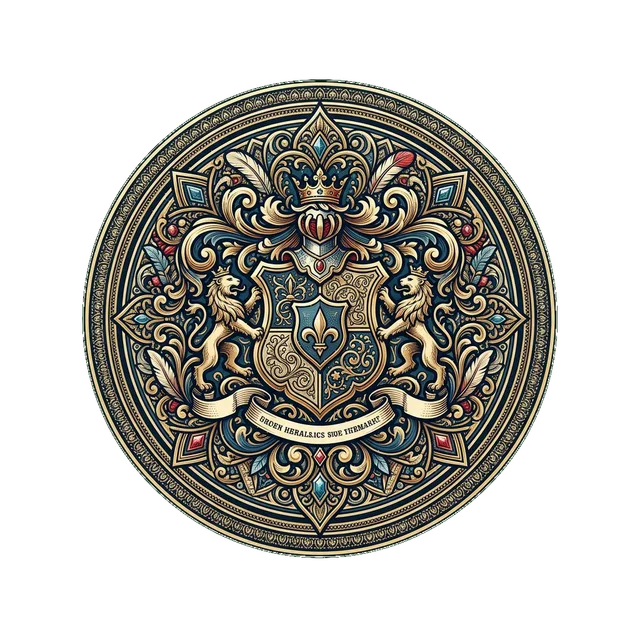
Gems, ribbons and filigree collapse into a smudge this small.
Milestones, and the sub badge ladder
Twitch ties badge art to tenure, not to a badge count you pick freely — so the real design job is a ladder, not a single icon.
Twitch fills in default badges at 1, 3, 6, 12 and 24 months. Affiliates and Partners can replace those and add custom art at further milestones — multi-year tenure earns Partners even more slots — and Tier 2 and Tier 3 subscribers can carry entirely separate art per milestone, if you want the badge to escalate with the tier as well as the tenure.
The easiest version that still looks intentional: one motif, one accent that gets richer per milestone — a plain outline at 1 month, a gem added at 3, gold trim by 12. Chat learns the pattern fast, and it reads as a system instead of six unrelated icons.
Sub badges vs. bit badges
Easy to conflate, because the file spec is identical. What unlocks each one isn't.
| Sub badge | Bit (cheer) badge | |
|---|---|---|
| Sizes | 72 · 36 · 18px | 72 · 36 · 18px |
| File cap | 25KB each | 25KB each |
| Unlocked by | Consecutive months subscribed | Cumulative bits cheered |
| Resets on | Unsubscribing | Never — bits accumulate for good |
One practical upshot: the same badge art and the same resizer output work for either. The design decision — one motif, escalating art per tier — is identical too. Only the milestone ladder underneath it is different.
Bits Tier Emotes and custom Cheermotes
Bits Tier Emotes and custom Cheermotes live in the same dashboard as bit badges. Neither one is a badge. Both use emote sizes, 112, 56 and 28 pixels, not the badge sizes above.
Bits Tier Emotes
Regular emotes tied to how many bits a viewer has cheered, total. The first three slots open on their own at 1,000, 5,000 and 10,000 bits. Same rules as any subscriber emote: a 112×112 PNG, a 1MB cap, uploaded from Viewer Rewards → Emotes.
Custom Cheermotes
This replaces the bit icon a viewer clicks to cheer, not anything shown beside a name. Twitch fixes five tiers at 1, 100, 1,000, 5,000 and 10,000 bits, and every tier needs an image before it turns on. The files are animated GIFs, not static PNGs.
| Bits Tier Emotes | Custom Cheermotes | |
|---|---|---|
| Sizes | 112 · 56 · 28px | 112 · 56 · 28px |
| Format | Static PNG | Animated GIF |
| File cap | 1MB | 1MB for one GIF, or 512KB per size in manual mode |
| Who can make one | Affiliates and Partners | Partners only |
| Goes live | After Twitch's usual emote review, unless your channel already has instant upload | Immediately, no review queue |
Upload to Twitch
No review queue here, unlike emotes — so this is also the last check before it's live.
- 1Open the Creator Dashboard
From your avatar menu on twitch.tv, then Viewer Rewards → Sub Badges in the left sidebar.
- 2Pick the milestone
Choose which tenure tier this art belongs to — 1 month, 3, 6, and so on — or the bits threshold for a cheer badge.
- 3Upload all three sizes
72×72, 36×36 and 18×18, together. Unlike emotes, there's no single-upload shortcut — Twitch wants all three files.
- 4Check the small preview
Twitch shows the badge at its real chat size before you save. If you can't tell what it is there, fix it now.
- 5Save, and it's live
Sub badges skip the review queue emotes go through — once it uploads cleanly, subscribers at that milestone see it immediately.
Questions people actually ask
Keep going
The sizes, the file rules, and the design decisions that separate an emote people spam from one nobody can make out. Draw it, commission it or use a maker — this covers all three.
Drop in one image, get 112, 56 and 28px back with transparency intact. No account, no watermark.
112×112, 56×56, 28×28 — the three sizes Twitch asks for, where each one actually shows up, and the file rules that get uploads rejected.
The four requirements, roughly how long they take, and the emote slots waiting on the other side.
Fixed the sizing.
Still need the art?
The resizer above works on badge art you already have, right now, for free. The Sub Badge Ladder — a tool that designs a whole milestone ladder in one style — is next up, and isn't live yet. The Emote Set Maker runs on the same style system, so a look you start there carries straight over once badges ship.